VIRTUAL MAKEUP TRY-ON
Virtual makeup try-on, with your own photo.
A makeup reference can show you a color or technique you love. Muse helps you imagine that direction on your own face. Choose a portrait, add an inspiration image, and use makeup mode to generate a preview centered on the person in your photo.
Explore a precise eyeliner shape, a softer color palette, or a fuller makeup look before deciding what to try in real life. Muse is an AI makeup and hair app, coming soon to iOS and Android.
See the transformation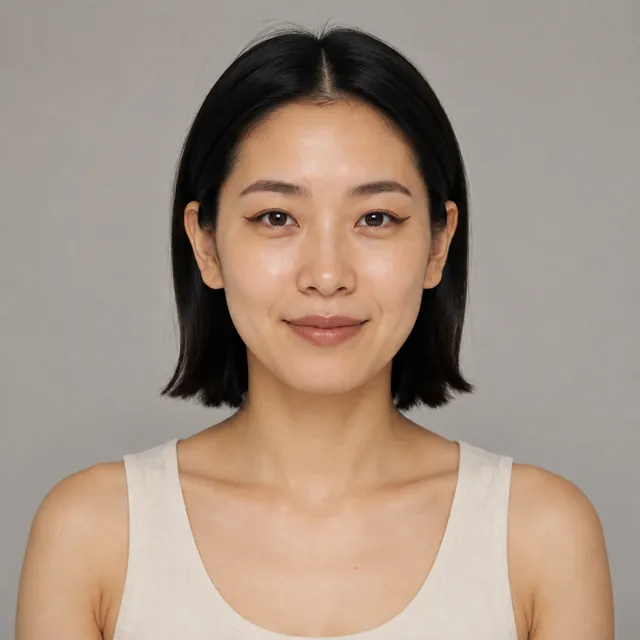
GENERATED WITH MUSE · MAKEUP MODE
From graphic liner inspiration to a personal preview
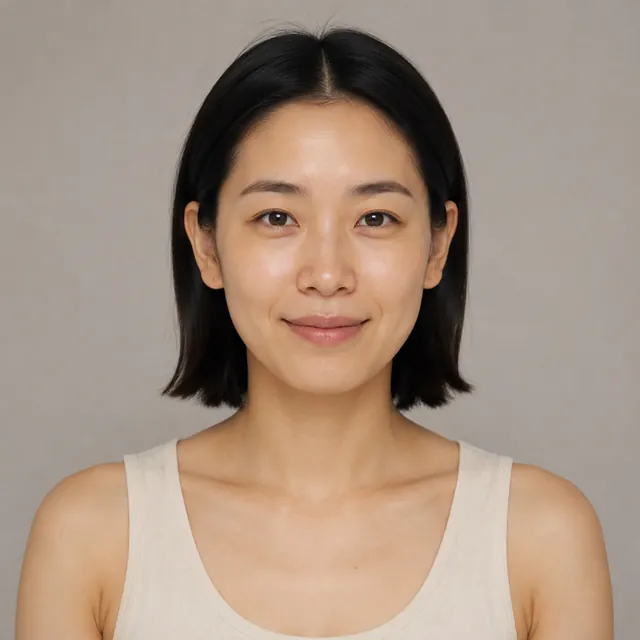
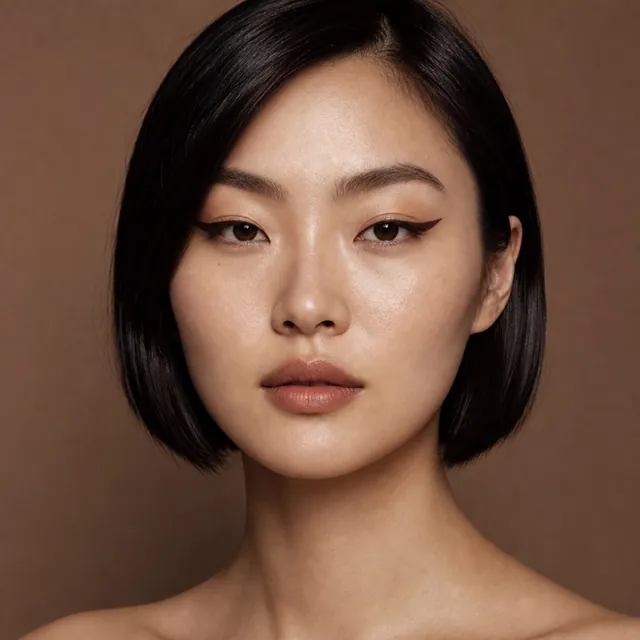
The Graphic Liner Try-On sequence shows the original portrait, the eyeliner reference, and the generated result together. It makes the requested change easy to inspect.
The portrait
The original portrait is the starting point for the person's face, expression, and existing hair.
The inspiration
The reference supplies the graphic eyeliner direction: a distinct, precise wing around the eyes.
The result
A wing is added while the original hair, skin texture, and facial proportions remain consistent in this example. Compare those details across the sequence as well as the makeup itself.
This is a representative generated example. Results vary with the portrait and reference; it is not a promise of an identical result for every photo.
See all four Muse examplesBEFORE YOUR FIRST LOOK
Prepare your first makeup try-on
Choose a clear portrait
Use a photo where your face and the area you want to change are easy to see. For eyeliner inspiration, pick a portrait with visible eyes and avoid hair covering the lids.
Find a readable reference
Add an image from your camera roll or start with a curated Muse idea. Choose one where the makeup detail you care about is visible, rather than hidden in a distant shot or heavy shadow.
Choose makeup and review the details
Use makeup mode for the makeup direction. Inspect the generated eyes, cheeks, and lips alongside your original portrait. Completed results are automatically saved in your private Lookbook.
A CLOSER LOOK
Makeup try-on questions
01Can I use a makeup reference from my camera roll?
Yes. Muse lets you choose a reference image from your camera roll or begin with a curated Muse idea. A reference with clearly visible makeup gives you a more useful direction to explore.
02Does makeup mode also change my hairstyle?
Makeup mode is the choice for applying the makeup direction. Choose hair and makeup together when both are part of the look you want to explore. The graphic liner example here uses makeup mode.
03Will the preview match real makeup exactly?
No. Muse creates an AI preview for inspiration. Lighting, skin, products, and application can make real makeup look different. Use the result to communicate a direction and decide what you would like to experiment with.
EXPLORE MUSE