MUSE PHOTO GUIDE
Choose photos for virtual makeup and hair try-on.
Muse creates a makeup or hair preview from two images: your portrait and a reference for the look you want. Each has a different job. The portrait supplies the person; the reference supplies the beauty direction. Choosing them carefully makes the result easier to judge.
Muse is coming soon to iOS and Android. Use this guide to prepare your first look.

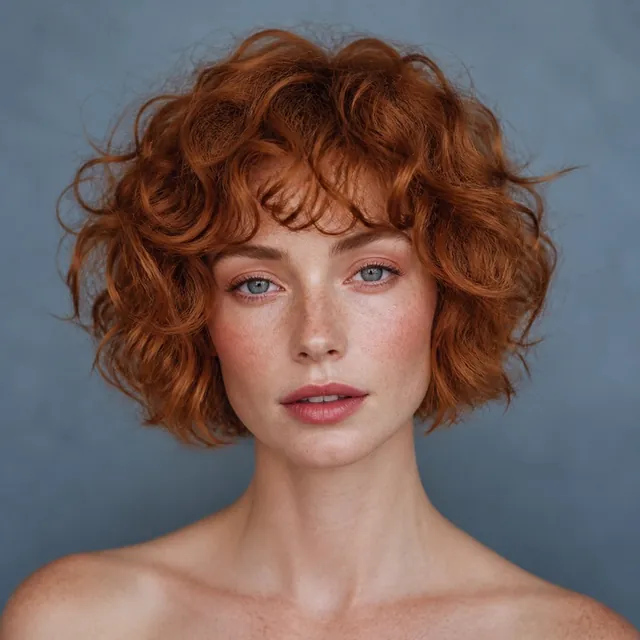
1. Choose a portrait you can compare
Start with a clear photo where your face and hair are visible. Use even light that lets you see both sides of your face. Avoid a photo so dark, blurry, or strongly filtered that it becomes difficult to recognize the details you want to keep.
Check the area you want to change. For eyeliner, your eyes should be visible. For hair, include the hairline and length where possible. A close crop can be useful for seeing makeup, but a wider portrait makes hair shape easier to compare.
2. Choose a reference with a clear direction
Use an image from your camera roll or a curated Muse idea. Before choosing it, name the detail that interests you: a precise wing, a copper tone, soft curls, or a complete makeup palette.
Look for a photo where that detail is visible. A distant face will be harder for you to assess as eyeliner inspiration; heavily colored lighting can make a hair tone ambiguous. Prefer a reference that makes your intention easy to see.
3. Match the mode to the change
Choose makeup for the makeup direction, hair for hair color and shape, or hair and makeup for a complete look. Hair mode can follow the reference's hairstyle as well as its color, so consider both when picking an image.
The Graphic Liner Try-On uses makeup mode. Copper Curl Transformation uses hair mode. Soft Berry Complete Look and Plum Complete Look use hair and makeup together. Browse those sequences to see the difference in intent.
Compare the graphic eyeliner sequence with the copper hair sequence.
4. Review the result against both images
Compare the result with your portrait first: does the person remain recognizable, and are the features you care about consistent? Then compare it with the reference: which colors, shapes, and makeup details carried across?
A generated preview is a way to explore an idea. It is not a guarantee of an exact makeup application or salon result. Completed results are automatically added to your private Lookbook; you can delete individual looks or the full Lookbook.
5. If the result is difficult to judge
- The makeup detail is hard to see
- Try a clearer portrait and a reference that shows the relevant area more closely. Check that you chose makeup mode if makeup is the change you want.
- The hair shape changed with the color
- Hair mode follows color and shape. For a comparison centered on tone, choose inspiration with a hairstyle closer to your current one.
- The generation did not finish
- Check your connection, keep Muse open, and try once more. If credits were deducted without a completed result, contact support with your account reference and the approximate time.
Portrait clarity and the reference can affect a generated result. These suggestions help you prepare and assess your images; they do not guarantee a particular output.
If you need help, contact Muse support.